Summer2026! may pass a website’s password rules, but its pattern is easy to guess: a common word, a year, and a symbol. A better password is hard to guess and used for only one account. Length, unpredictability, and uniqueness matter more than dressing up a familiar phrase.
What makes a password strong?
Attackers do not have to try every possible string in alphabetical order. They can start with common or leaked passwords, names, keyboard patterns, and substitutions such as replacing “a” with “@.” How you choose a password matters as much as the characters it contains.
- Length: Longer passwords generally give attackers more possibilities to contend with. Aim for at least 15 characters when creating a password yourself, unless the service imposes a lower limit.
- Unpredictability: Randomly generated characters or randomly selected words are better than personal facts, quotations, or phrases built around a familiar theme.
- Uniqueness: Use a different password for every account. If a service exposes one of your passwords, reuse puts your other accounts at risk.
Complexity rules may rule out very simple choices, but an uppercase letter and a symbol do not make Password1! safe. When a site allows it, generating a long random password is usually easier than inventing one you can remember that also resists guessing.
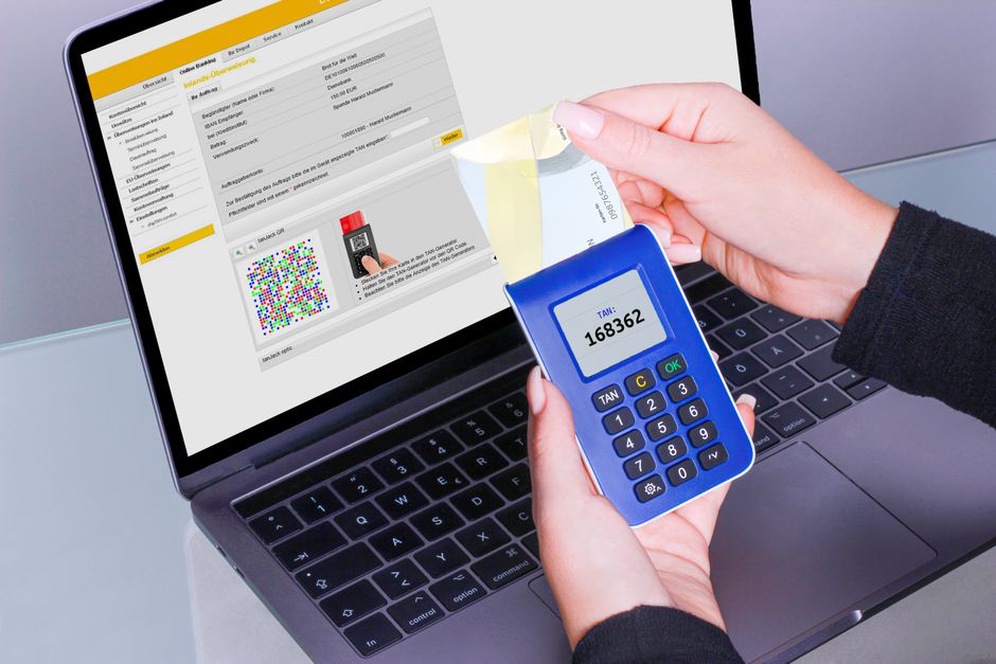
Generate passwords instead of inventing them
For accounts you rarely type into
Use a reputable password manager’s built-in generator to make a unique password for each account. Twenty or more characters is a practical default when the service accepts it. Letters, digits, and symbols are fine; what matters is that the selection is random, not a pattern you came up with. Save the password to the correct account entry before closing the registration or password-change page.
If a site rejects it, check the stated length and character restrictions and generate another password that fits. Do not shorten it into a familiar word or reuse one from another site. For a developer account, check whether the credential is an interactive login password, a token, or an SSH key. Those are different secrets with their own handling requirements.
For passwords you must remember
Your password manager still needs a strong master password. A passphrase made from several randomly chosen words can be easier to type and recall than a jumble of characters. “Harbor velvet orbit lantern” shows the format, but do not use those words as your password. Choose your own with a trustworthy random-word generator or another genuinely random method. A predictable digit at the end will not make up for choosing words from your favorite book or hobby.
Practice typing a new master passphrase a few times before relying on memory alone. Keep any written recovery copy in a secure physical location, not in an unencrypted note on the same device. Read your password manager’s recovery instructions, too: some providers cannot reset a forgotten master password or restore a lost recovery key.
Why each account needs a different password
Suppose a forum you used years ago suffers a breach. If its password also works for your email, an attacker may try the same credentials there. That is credential stuffing. A unique password limits an exposed credential’s usefulness to the affected service. It does not make the breach harmless, but it helps prevent a chain reaction.
Prioritize your primary email account, password manager, banking accounts, and developer platforms. Email deserves particular care because password-reset messages for other services may arrive there. For work accounts, follow your organization’s approved password manager, identity provider, and recovery process. Do not copy work credentials into a personal vault without permission.
Use a password manager carefully
A password manager makes unique, generated passwords practical across many accounts. It can fill credentials for a matching website or app and help you spot reused passwords. Choose one you can keep updated on the devices you use, and learn how its vault backup and recovery work before you depend on it.
- Protect the vault with a strong, unique master password. Enable multifactor authentication (MFA) if the manager supports it.
- Keep the manager, browser, and operating system updated so known security issues do not remain unpatched.
- Check the website address before approving autofill, especially after following a message or search result. Autofill may warn you when a site does not match a saved entry, but it cannot guarantee a page is legitimate.
- Lock the vault on shared devices, and do not save its master password in an ordinary browser note or document.
Browser password managers can also generate and store passwords. The better choice is the one you will use consistently and can secure and recover properly. Whichever tool you choose, never paste passwords into source code, commit them to a repository, or share them in team chat. If a secret reaches a repository, limit its exposure where possible and rotate it. Deleting the line from the latest commit may leave the secret in the repository’s history.
Add MFA without treating it as a replacement
MFA asks for another proof of identity alongside a password. Where available, a passkey or security key can resist phishing better than a one-time code. Authenticator-app codes are useful too. SMS codes add a layer when stronger options are unavailable, though phone-number takeover and message interception remain risks.
Enable MFA first on your email, password manager, financial accounts, and developer accounts. Store recovery codes in a protected place separate from the device that receives your second factor. Before replacing a phone, confirm that you can transfer your authenticator entries or use the service’s documented recovery process. Never approve an unexpected sign-in prompt just to dismiss it.
Some services offer passwordless passkeys, so you may not need to create or remember a password for those accounts. You still need to know how each passkey is stored, synchronized, and recovered if a device is lost.
Know when to change a password
Changing every password on a fixed schedule is less useful than responding to a specific problem. Change one promptly if it was exposed in a breach, entered into a suspicious page, shared accidentally, or reused on an affected account. Change default passwords on devices and services you control as well.
If you suspect an account is compromised, use the legitimate service’s settings or recovery process from a trusted device. Set a new unique password, review active sessions and recovery details, and enable or reset MFA as appropriate. Report a work or school account incident through your organization’s established channel. A password change may not sign out existing sessions automatically, so look for a “sign out of other devices” option.
Make the next account safer
For your next account, generate a unique password and save it under the correct website name. Set up MFA if it is offered, and store the recovery codes before leaving account settings. Then sign out and back in while the setup is fresh in your mind, so you can catch a missing or incorrectly saved credential now rather than when you urgently need access.