A VPN sends your device’s traffic through an encrypted connection to a VPN server instead of sending it directly toward a website. The website sees the server’s public IP address rather than the one assigned to your connection. That can limit what a local network operator sees, but it does not make your activity invisible.
The important trade-off is trust. A VPN protects traffic on part of its route while giving the VPN operator a role your internet provider or Wi-Fi operator might otherwise have. Whether that helps depends on what you want to protect—and from whom.
What happens when you connect to a VPN?
A VPN app establishes an encrypted tunnel between your device and a server run by a VPN provider, your employer, or your own organization. Your device sends traffic through the tunnel; the server forwards it to its destination and returns the responses. Websites usually see requests coming from the server’s IP address.
Picture a laptop on café Wi-Fi. Without a VPN, its traffic passes through the café network on the way to the internet. With a working VPN, that network can generally see a connection to a VPN server, when it happens, and roughly how much data moves. It cannot normally read what is inside the tunnel. The VPN provider is now in a position to observe some connection information, though, so its practices matter.
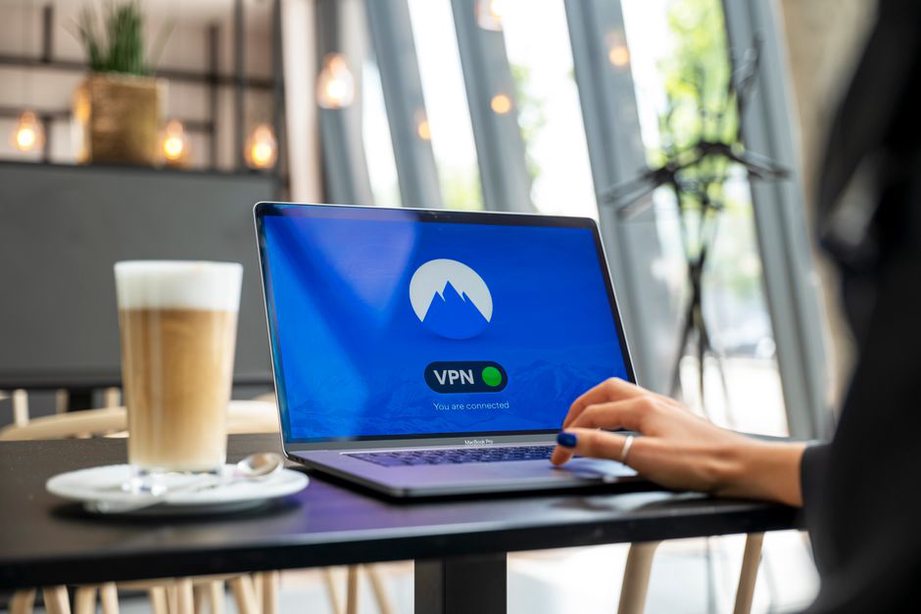
The tunnel is separate from HTTPS, which encrypts the connection between your browser and most modern websites even when you are not using a VPN. A VPN adds protection across the local network and changes the IP address the website sees. It does not replace HTTPS or make an unsafe website safe.
VPN server or website: who can see what?
What each party can see depends partly on the app, protocol, and destination. As a working guide:
- The local network and internet provider can generally see that you connected to a VPN server, when you connected, and how much data moved. They ordinarily cannot see the contents of a properly functioning VPN tunnel.
- The VPN operator can see your originating IP address when you connect. It may also be able to observe destination information or metadata as it forwards traffic. HTTPS still protects the contents of an HTTPS session from the VPN operator.
- A website usually sees the VPN server’s IP address, but it can still identify you through a login, information you submit, or other tracking signals.
Those boundaries are not absolute. Traffic outside the tunnel, DNS leaks, browser settings, and account logins can all change what each party learns.
Where a VPN helps—and where it does not
A VPN helps when you do not fully trust the network carrying your traffic. On public Wi-Fi, it makes traffic inside the tunnel harder for someone managing or monitoring the local network to inspect. It can also reduce the destination information your internet provider receives directly. At work, an organization may use a VPN to give authorized staff encrypted access to internal services that are not exposed to the public internet.
Changing your apparent IP address offers a modest privacy benefit. If a website has no other way to identify you, it sees the VPN server’s address instead of your connection’s public address. This is IP masking, not anonymity. Signing in tells the service who you are, while cookies or other browser identifiers may link separate visits.
A VPN will not stop phishing, malicious downloads, password reuse, or tracking within an account you use. Nor does it tell you whether a website is legitimate. On an employer-managed device, management software and work accounts may collect information independently of the VPN connection.
Location has similar limits. A VPN can change the location suggested by your public IP address, but apps may also use GPS, nearby Wi-Fi signals, account details, or device settings. Some services block known VPN server addresses. If one stops working over a VPN, check the VPN’s connection status and the service’s access policy separately; a blocked connection does not necessarily mean the tunnel failed.
Choose the VPN that fits the job
Personal privacy service versus work VPN
A consumer VPN routes selected device traffic through a provider’s server. You choose the provider and decide whether you trust its privacy practices. A workplace VPN is mainly for access to organizational resources under the organization’s rules. It may carry only work-destined traffic, or it may carry all traffic. Check your organization’s device and network policy rather than treating its VPN as a personal privacy tool.
When evaluating a personal service, look past promises of being “completely anonymous.” Ask how the provider handles data and what the app does when something goes wrong:
- Logging: What connection data is collected, how long is it retained, and is the policy specific enough to understand?
- Security: Does the app use a modern, documented VPN protocol and receive regular updates?
- Failure behavior: Can it block traffic if the tunnel drops, and can you tell when that protection is active?
- DNS handling: Does it send DNS lookups through the intended route while connected?
- Device support: Does the service work reliably on the operating systems you actually use?
An independent assessment can provide evidence, but an audit covers a particular scope at a particular time; it is not a permanent guarantee. Free and paid services both need scrutiny. If a provider says little about how it funds the service or handles data, do not assume that avoiding a subscription carries no privacy cost.
Protocol names without the jargon trap
You may see names such as WireGuard, OpenVPN, and IKEv2/IPsec. A protocol defines how the VPN connection is established and secured, and an app may offer more than one. Modern protocols can provide strong protection when implemented and configured correctly. If you are new to VPNs, keeping the app updated and using a provider-supported default is generally more useful than changing advanced settings without a reason. A protocol name alone says nothing about how responsibly a provider handles your data.
Set up a VPN without creating blind spots
Installation is usually straightforward, but a few settings determine where your traffic goes. Use the provider’s official app or your organization’s approved client, install updates, and confirm that the operating system shows the VPN as connected before relying on it.
- Choose a nearby server for routine use. Distance and server load can affect speed and latency; the farthest location rarely offers a privacy advantage on its own.
- Check the kill-switch setting. If available, it aims to prevent ordinary traffic from using the unprotected connection after a VPN drop. Test it before assuming it covers every app and network change.
- Review split tunneling. It sends some apps or destinations through the VPN and others directly to the internet. That can be useful, but excluded traffic does not get protection from the VPN tunnel.
- Confirm DNS behavior. DNS translates names into addresses. If lookups take an unintended route, another network operator may learn which names you request even while other traffic uses the VPN.
- Recheck after network changes. Moving between Wi-Fi and mobile data, waking a laptop, or signing in to a captive portal can interrupt the tunnel.
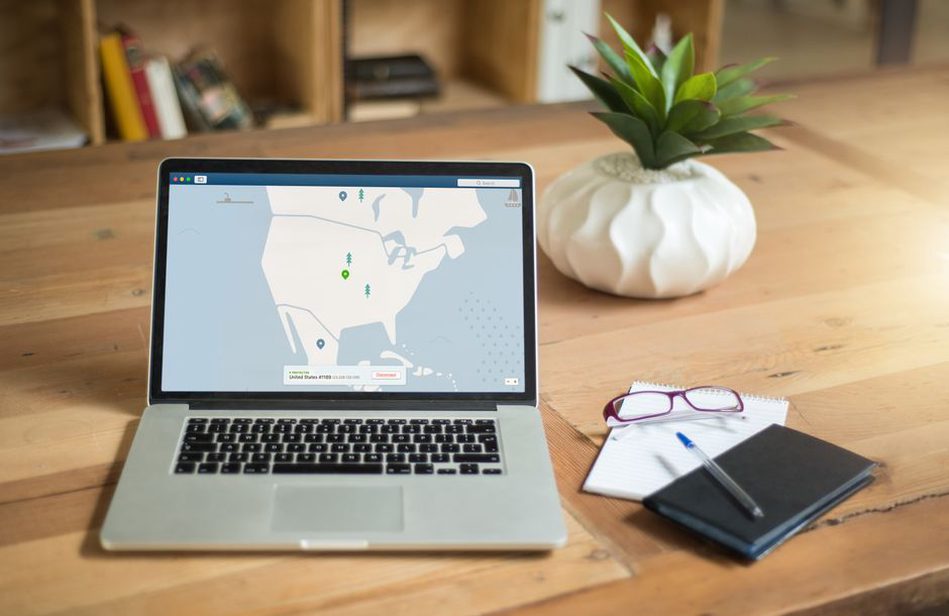
A captive portal—the sign-in page at some hotels and cafés—may need to be completed before the VPN can connect. If you disconnect temporarily to do that, reconnect and check its status before sensitive work. On a shared or managed device, follow the owner’s policy instead of installing an unapproved VPN client.
Common surprises after connecting
Slower connections: Traffic takes an extra route and must be encrypted and decrypted. Try a closer server, check for an app update, and compare speeds on the same network with and without the VPN. Speed alone cannot tell you whether the tunnel is secure.
Local devices disappear: Printers or development devices on your home network may become unreachable because the VPN changes routing or blocks local-network access. Look for a clearly labeled local-network setting, and enable it only when you trust the network and need those devices. Do not disable protections broadly just to fix one printer.
A website asks for extra verification: Other customers may share the VPN server’s public IP address. A service may challenge unusual traffic from that address or send a login alert. Check the message within the service itself, not through a link in an unexpected email.
An app uses the wrong route: Check split-tunneling rules and any per-app VPN settings. On a work connection, ask the administrator which destinations belong in the tunnel. Changing routes yourself may disrupt access or violate policy.
A simple privacy check before sensitive work
Suppose you are about to access a personal repository from a laptop on airport Wi-Fi. Complete the legitimate Wi-Fi sign-in first, then connect the VPN and check its status. Open the repository at its normal HTTPS address, confirm that the browser reports a secure connection, and use your usual multifactor authentication to sign in. If the VPN drops while you work, pause and reconnect. Do not assume the browser or VPN has silently restored the route you intended.