A database listening on every network interface may be reachable from guest Wi-Fi, even if its developer intended only one application server to use it. Start by finding out which devices can reach the service, then remove paths it does not need. A firewall rule helps, but so do the service's listening address, Wi-Fi settings, device configuration, and regular checks.
Draw the network you actually have
List the router, wireless access points, computers, phones, printers, smart devices, and any server or development machine. For each, note its purpose, who administers it, which network or subnet it uses, and whether it needs to accept incoming connections. Include remote access tools and cloud-connected devices: a device that connects to a vendor's service may still depend on that service for administration.
Then map the connections that should work. A laptop may need internet access and a local printer. A development server may need to accept HTTPS from a test network, but its database port need not be available to every device on the LAN. This inventory turns “lock down the network” into statements you can test: guest Wi-Fi cannot reach the server, and only designated administrators can reach its management interface.
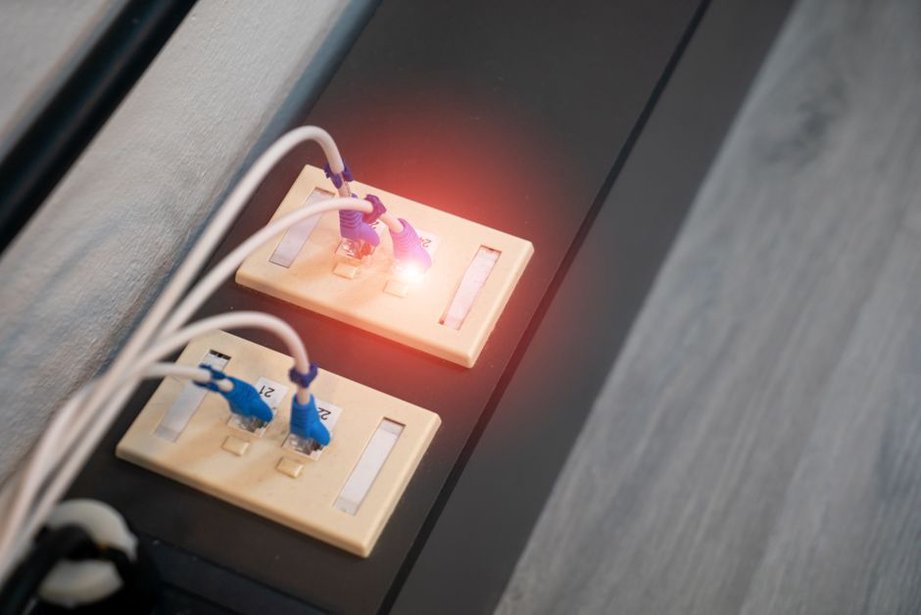
Secure the router and wireless boundary
In many small networks, the router provides both internet access and separation between local groups. Review its administration settings from a trusted device on the local network. Replace default or shared administrator credentials with a unique password, enable multifactor authentication if supported, and keep the firmware current while the device is supported. Disable administration from the internet unless there is a documented need and a controlled way to access it. If security updates have ended, plan to replace the router; a strong password cannot fix unpatched flaws.
Use WPA3-Personal if every necessary Wi-Fi device supports it. Otherwise, use WPA2-AES with a long, unique passphrase. If an older device requires a legacy mode, consider isolating or replacing it instead of weakening the main network. Turn off WPS push-button or PIN enrollment when it is not needed. Give networks names that staff and visitors can distinguish, but do not treat a hidden network name as a security boundary.
Give visitors and less-trusted devices a separate path
A guest SSID is useful only if it restricts access to the primary network. Check whether the router offers guest isolation, client isolation, or a separate VLAN, and verify what each setting blocks. On some equipment, client isolation stops guests from reaching one another but still permits access to other local resources. Test the connection rather than trusting the label. Put smart TVs, cameras, and similar devices on a separate network when practical, allowing only the access they need.
You do not need an elaborate design to start segmenting a small workspace. A main network for managed computers, a guest network for visitors, and an isolated group for less-trusted devices may be enough. Document exceptions, such as printing across groups, by destination and service rather than opening unrestricted traffic between entire subnets.
Reduce exposed services on each device
Network equipment cannot reliably protect a service accidentally exposed within a trusted segment. On each server or development machine, identify what is listening and who should be able to connect. A development web app meant only for its host should listen on the loopback address, commonly 127.0.0.1 or ::1, rather than every interface. If colleagues need the service, bind it to an appropriate interface and allow it through the host firewall only from their network. Check both IPv4 and IPv6; restricting one does not necessarily restrict the other.
Disable services with no owner or current use. Remove temporary file shares when a project ends, and avoid leaving remote desktop or administrative consoles enabled for convenience. Services that must remain available should use authenticated, encrypted access and accounts limited to the permissions the task requires. An application needing a database is not a reason to expose that database to the internet; the two can communicate over a restricted internal path.
Test changes from a device in each relevant network group, not just from the server. Connecting to localhost tells you little about access from guest Wi-Fi. If a restriction breaks an application, you may have found an undocumented dependency. Record it before deciding whether to restore access or redesign the connection.
Apply firewall rules as a policy, not a pile of exceptions
A host firewall can deny unsolicited inbound connections and allow only required services from defined sources. A router or network firewall can restrict traffic between segments and control incoming connections from the internet. Outbound rules can help on specialized systems, but blanket outbound blocks on workstations may disrupt updates and leave behind exceptions nobody understands.
For each allowed connection, record the source, destination, protocol, port, purpose, and owner. “Managed workstations to test server, TCP 443, for the internal web app” is more useful than “allow server access.” An IP address and port tell you where traffic goes, not whether the person or application using it is authorized. The service still needs authentication and authorization.
| Connection | Typical decision | What to check |
|---|---|---|
| Internet to a local database | Block | Confirm no router forwarding or public service exposure |
| Guest Wi-Fi to managed workstations | Block | Test from a guest device after enabling isolation |
| Managed devices to an internal web app | Allow only as needed | Limit the destination and require application login |
| Internet to router administration | Disable by default | Check remote management settings and document exceptions |
Take extra care when changing rules on a remote server: blocking your administration connection can lock you out. Keep a working console or another approved recovery path, save the existing rules, and make changes when someone can verify access. Revisit exceptions when a service moves or is retired. For a closer look at how packet rules make decisions, How Firewalls Control Network Access covers the mechanism; the practical goal here is a short rule set with a reason for every exception.
Protect management access and name resolution
Administrative interfaces need a narrower access path than ordinary applications. Where possible, limit router, switch, hypervisor, and server management to designated devices or an administration network. Use named administrator accounts instead of a shared login, remove accounts when responsibilities change, and keep a recovery procedure that does not depend on one person's phone or laptop. If remote administration is necessary, use an approved encrypted method with strong authentication rather than publishing an admin page directly to the internet.
Review DNS settings too. Devices usually receive resolver addresses through the router or DHCP; an unexpected change can send users to the wrong destinations or break access. Record the intended resolver configuration and limit who can change it. Encrypted web traffic remains important, but DNS filtering is not a complete security boundary. It cannot tell whether a permitted site is safe or whether an application is authorized to send data.
Make updates and visibility routine
Equipment ages, and exceptions accumulate. Keep a short update list for router and access point firmware, operating systems, exposed applications, and devices such as printers. Check vendor support status, schedule updates, and confirm afterward that required connections still work. If a device cannot be patched, restrict its network access while arranging a replacement. Isolation reduces exposure; it does not fix the vulnerability.
Logs help most when you know what question you are asking. Keep the router's administrative event log if available, note configuration changes, and review failed logins or unexpected new devices. On a server, compare changes in listening services and repeated connection failures with application logs. A blocked connection is not automatically an attack; routine software discovery and configuration mistakes create noise too. Keep device clocks accurate so you can compare events.
Run a small authorized verification cycle
After setup, check the policy using devices you own or are explicitly permitted to administer. Reach the internal app from a managed device, then confirm that a guest device cannot reach it. Check that the router administration page is unavailable from guest Wi-Fi and, if remote management is disabled, from outside the network. Verify that another machine cannot reach a local-only development service. Investigate surprises using device settings and logs; do not probe networks outside your authorization.
- Record the current network groups, devices, and expected connections.
- Make one controlled change, such as removing an unused port-forwarding rule.
- Test both permitted access and access that should be blocked.
- Save the result, configuration date, and rollback information.
- Recheck after equipment replacement, application changes, or firmware updates.
Write down the results in terms you can retest: “Guest Wi-Fi device could browse the web and could not reach the internal test server on TCP 443; managed laptop could reach the app and log in.” If that changes after a router update, you know which boundary to investigate.