
If your knees hit a drawer every time you pull up to the desk, moving the monitor won’t help. Clear space for your legs and chair first, then adjust the equipment you use most. In a small home office, a few inches of usable space can matter more than another storage accessory.
Start with the space your body needs
Sit at the desk as you normally would. Your feet need a stable place to rest, and you should be able to shift your legs without hitting boxes, a cabinet, or dangling cables. If your feet don’t comfortably reach the floor, try a stable footrest. A firm box will do temporarily if it doesn’t slide.
Bring the keyboard and mouse close enough to keep your upper arms near your sides. Aim to keep your wrists fairly straight rather than reaching upward to type. If the desktop is too high, raising your chair may help—but only if your feet stay supported. Don’t chase one perfect posture; change position throughout the day, especially during long work sessions.
A supportive chair doesn’t have to be large. Can you sit back against it? Does the seat press behind your knees? Do the armrests stop you from pulling close to the desk? If adjustable armrests are in the way, lowering or removing them may free up more room than buying a narrower desk.
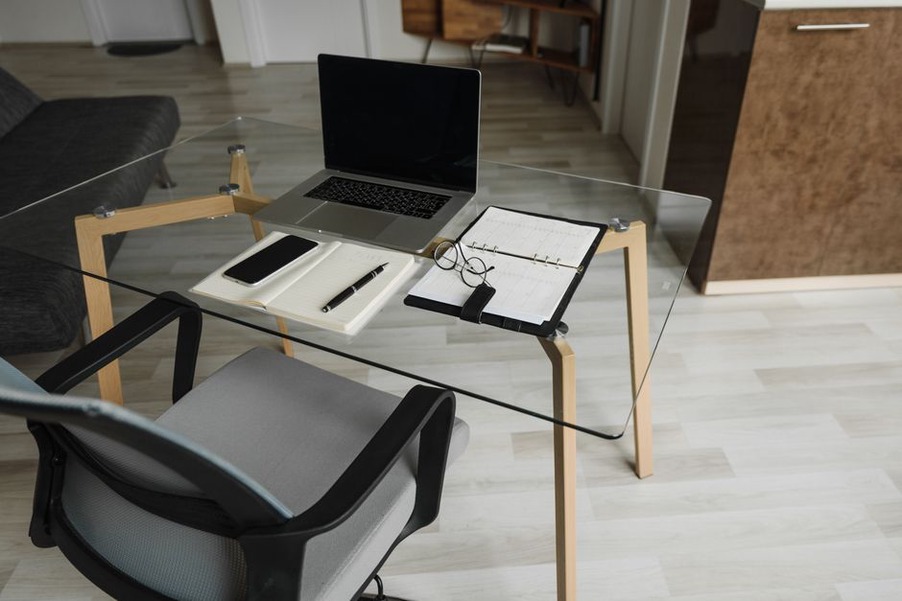
Make the screen comfortable to look at
Start with your main screen roughly an arm’s length away, then adjust for its size and your vision. The top of the display is often comfortable at or slightly below eye level, though different lenses may call for a different height. You should be able to read without leaning forward or tipping your head back.
A laptop stand raises the display, but it raises the built-in keyboard too. A separate keyboard and mouse let you position the screen and your hands independently. If those aren’t an option, prioritize a comfortable typing height and take more frequent breaks from looking down. Enlarging the text is usually a better fix than pulling the laptop dangerously close to the desk edge.
In a tight room, one well-positioned monitor may be easier to use than two screens competing for desk space. If you need a second display for coding or documentation, keep your most-used work directly in front of you. When reading on the secondary screen for a while, turn your chair toward it instead of repeatedly twisting your neck.
Control light without sacrificing desk space
Glare can make a good setup tiring. Try placing the screen with a window to one side, rather than directly behind you or behind the display. A blind or curtain helps when daylight changes sharply. Before buying a lamp, see whether adjusting the monitor angle and cleaning the screen solve the problem.
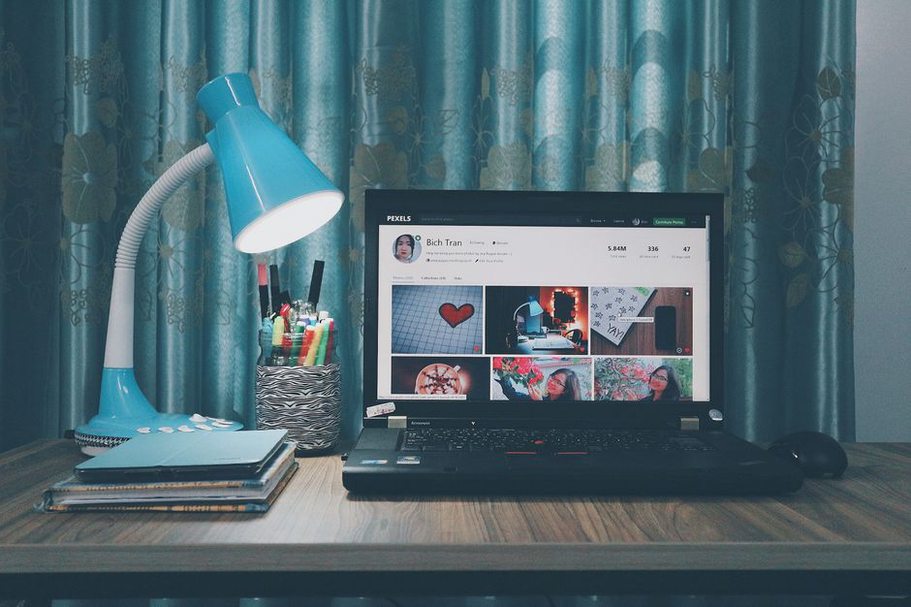
A small adjustable task lamp can light your notes without shining across the screen. Aim it at the work surface, not into your eyes. If it has to sit near the monitor, test it when you usually work: reflections you don’t notice in the morning may become distracting after dark.
A bright screen in a dark room can feel uncomfortable too. Add gentle room lighting, set screen brightness to suit the surroundings, and enlarge fine text instead of straining to read it. If eye discomfort continues, ask a qualified eye-care professional for advice rather than assuming the workspace is the only cause.
Keep heat, noise, and air in mind
A computer, monitor, and direct sunlight can warm a small office quickly. Keep the computer’s ventilation openings clear. A desktop tower shut inside a tight cabinet or a laptop resting on soft fabric may not get enough airflow. Where possible, move equipment out of direct sun and leave space around it.
Ventilate the room when conditions allow. A fan can help with stuffiness, but it may interrupt calls or focused work; try a lower setting or a different position before buying noise-control equipment. Soft furnishings can reduce harsh echoes, while headphones help with intermittent household noise. Keep the volume moderate and take breaks from wearing them.
Temperature is personal, particularly in a shared home. Try small, reversible changes first: an extra layer, a shaded window, or a different fan direction may be easier than changing the temperature for everyone.
Store things according to how often you use them
A tidy desk is useful because it leaves room for your hands, not because everything has to be hidden. Sort what you keep there by how often you use it:
- Daily: keyboard, mouse, notebook, and anything needed for regular calls or study sessions.
- Occasional: spare cables, adapters, paper files, and devices used a few times a month.
- Rare: packaging, old notes, and accessories kept only as backups.
Keep daily items within easy reach. Put occasional items in a labeled drawer, shelf, or container; move rarely used things away from the desk or decide if you still need them. A shallow wall shelf can help when floor space is limited, but heavy items need fixings suited to the wall. Leave room to open doors, move your chair, and exit easily.
Cable clips or reusable ties can keep cords away from your feet. Leave enough slack for adjustable equipment to move without tugging at plugs, and don’t bury power strips under paper. Avoid overloading outlets or running cords where a chair repeatedly rolls over them.
Set up for focused work and private calls
If your office is a bedroom or living-room corner, you can mark out work time without adding furniture. Use a dedicated desk light, keep work materials in a consistent spot, and put them away at the end of the day. On a shared table, a small container for the keyboard and notebook makes it easier to give the space back afterward.
Before moving furniture for video calls, check what the camera actually shows. A plain wall or stable curtain can cut down on distractions. Place a light in front of or beside you, not directly behind your head. For private conversations, close the door if you can and think about who might hear through nearby walls. Headphones keep call audio from carrying, but they won’t muffle your voice.
Protect your work in shared spaces too. Lock the screen when you step away, and keep sensitive documents out of view of visitors or anyone looking through a window.
Change one problem at a time
Buying a chair, stand, and shelves all at once makes it hard to tell what helped. Name the problem first: sore shoulders after typing, afternoon glare, or nowhere to move your feet. Change one thing, work through several normal sessions, and see whether it makes a difference.
If your shoulders rise while typing, bring the keyboard closer and check your chair and desk height before buying an ergonomic keyboard. If the screen becomes hard to read after lunch, look at where the sunlight falls at that hour before replacing the monitor. Keep changes that fix an actual problem; return purchases that only make the room look tidier.
When you finish work tomorrow, take a minute to note where you felt discomfort and what you were doing at the time. “My neck hurt while reading on the second screen” points to a more useful adjustment than “fix the office.”