The LG G7 ThinQ, released in 2018, packs a Snapdragon 845, a 6.1-inch QHD+ LCD with a notch, and a unique Quad DAC that processes 32-bit audio with up to 192 kHz sampling. For developers and cybersecurity learners, this phone offers more than just a high-fidelity headphone jack. Its hardware-level audio capabilities make it a practical tool for testing sound processing algorithms, while its Android Pie (upgradable to Android 10) provides a standard environment for mobile app development and secure configuration labs.
Unlike many modern flagships, the G7 ThinQ retains a 3.5 mm audio jack with the Quad DAC, which can be toggled on or off via software. This is useful when you need to analyze analog audio signals or build applications that rely on low-latency audio output. The phone also features a Boombox Speaker that uses the internal resonance chamber to amplify sound—great for testing media playback in security-conscious scenarios where external speakers might be compromised.

Setting Up a Secure Development Environment on the LG G7 ThinQ
Before you start coding or testing, configure the device with digital hygiene in mind. Enable Developer Options by tapping Build Number seven times in Settings > About Phone. From there, you can turn on USB Debugging and OEM Unlock—but be cautious with the latter. Unlocking the bootloader voids the warranty and wipes all data. For most learning purposes, keep the bootloader locked and use a secondary device for experiments that require root access.
For safe app testing, enable Verify apps over USB and Disable permission monitoring (the latter only if you are debugging your own applications). Install the Android Debug Bridge (ADB) on your Linux or macOS workstation. Connect the G7 ThinQ via USB, accept the RSA key fingerprint on the phone, and you are ready to sideload APKs, capture logs, and inspect system services without exposing the device to untrusted networks.
If you plan to test network security tools, keep the phone on a separate VLAN or use a dedicated Wi‑Fi hotspot that does not have access to your production systems. The G7 ThinQ supports 802.11ac and Bluetooth 5.0; disable Bluetooth when not in use to reduce the attack surface.
Using the LG G7 ThinQ for Network Diagnostics and Security Labs
With a USB‑C to Ethernet adapter, the G7 ThinQ can perform wired network diagnostics. Install a packet capture app like Packet Capture or tPacketCapture (both require a VPN‑based local proxy) to inspect HTTP/HTTPS traffic from your own applications. Because the phone runs a standard Linux kernel, you can also use Termux to run command‑line tools such as ping, traceroute, nslookup, and netstat—all within a legal, self‑contained environment.
For more advanced lab work, set up a local virtual machine running Kali Linux on your desktop and use the G7 ThinQ as a client to test a web application you built. Never scan networks or devices you do not own. The phone’s Wi‑Fi chipset (Qualcomm WCN3990) supports monitor mode only after kernel modifications that usually require root, which we do not recommend for beginners. Instead, use the phone to verify that your own server’s TLS certificates are valid and that no rogue access points are spoofing your home network.
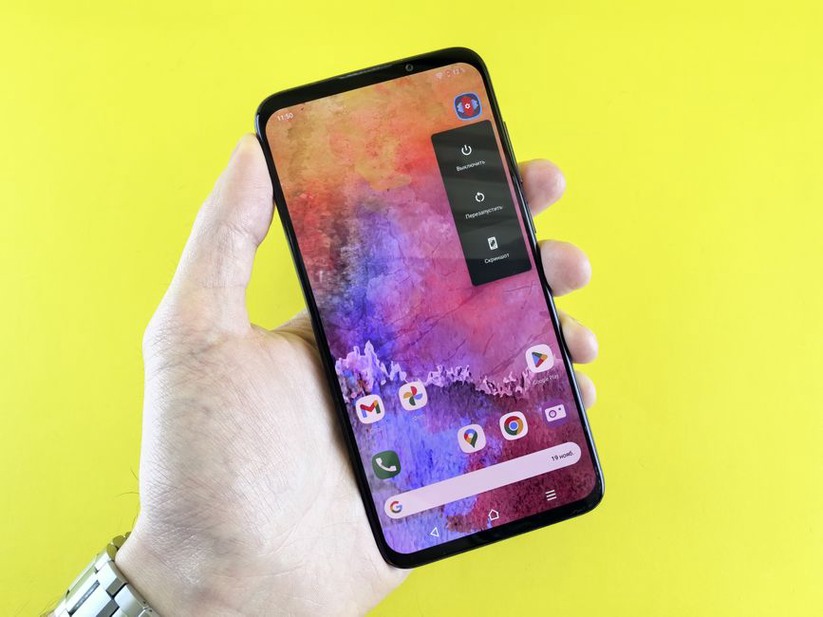
Digital Hygiene: Protecting Your Device and Data
The LG G7 ThinQ receives security patches only up to early 2020 (Android security patch level March 1, 2020). This means it is vulnerable to several known exploits, such as CVE‑2019‑2215 (a use‑after‑free in the binder driver) and various Qualcomm DSP vulnerabilities. As a developer, you can still use the phone safely if you follow strict rules:
- Never install applications from outside the Google Play Store unless you are sideloading your own signed APKs during development.
- Disable Wi‑Fi and mobile data when not actively needed.
- Use a VPN that you control (e.g., WireGuard on a home server) to encrypt all traffic.
- Regularly check for app permissions and revoke any that seem excessive.
- Do not store sensitive credentials or private keys on the device. Use a hardware security key or a password manager with biometric unlock.
The phone’s IP68 water resistance and MIL‑STD‑810G compliance make it physically durable, but its software is outdated. Consider it a lab device, not a daily driver for sensitive communications. If you want to extend its life, you can install a custom ROM like LineageOS, but that requires an unlocked bootloader and voids any remaining warranty. Always back up your data before attempting such modifications.
Practical Security Checks You Can Perform
Using only the built‑in tools and your own authorized network, verify the following on your LG G7 ThinQ:
- Check the current security patch level in Settings > About Phone > Software Info > Android Security Patch Level. If it is older than March 2020, treat the device as unsupported for production use.
- Enable “Google Play Protect” and run a scan to ensure no malicious apps are installed.
- Audit installed apps – remove any that request SMS, phone, or location permissions without a clear reason.
- Test your own application’s network behavior by using a local proxy like mitmproxy on your desktop and routing the phone’s traffic through it (requires installing a custom CA certificate on the phone – do this only for your own apps).
By keeping the G7 ThinQ isolated from your primary accounts and using it solely for development and learning, you minimize risk while gaining hands‑on experience with Android security boundaries.
After setting up your lab, open the Developer Options menu and toggle “Stay awake” to prevent the screen from locking during debugging sessions. Then connect the phone to your workstation, launch a simple “Hello World” app from Android Studio, and watch the Logcat output. That single step confirms that your development environment is functional and that you can safely interact with the device’s internals without compromising security.