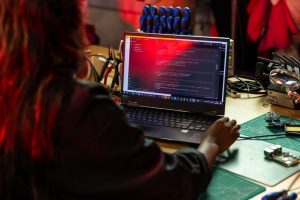
When you first open a terminal in Kali Linux, the sheer number of available tools can feel overwhelming. But beneath the graphical menus lies a set of core commands that form the backbone of every security assessment. This reference focuses on commands you will use inside authorised lab environments—virtual machines, local test networks, and deliberately vulnerable systems you own or have written permission to test. Each command is presented with its practical purpose, not as a weapon, but as a diagnostic and learning instrument.
System Information and Process Control
Knowing what is running on your own machine is the first step toward understanding how an attacker might see it. These commands help you inspect system state and manage processes without crossing any legal lines.
- uname -a – Displays kernel version, architecture, and hostname. Use it to check if your Kali VM matches the target environment.
- lscpu – Lists CPU architecture details. Helpful when compiling exploits or tools for a specific platform.
- free -h – Shows memory usage in human-readable format. Monitor resource consumption during intensive scans.
- ps aux – Lists every running process with user, PID, and CPU/memory usage. Combine with
grepto isolate a specific service. - kill -15 <PID> – Gracefully stops a process. Use
-9only as a last resort. Practice on your own test services. - systemctl status <service> – Checks whether a systemd service (e.g., ssh, apache2) is active. Essential for verifying that your lab services are running before testing.
File System Navigation and Permissions
Misconfigured file permissions are a common vulnerability in capture-the-flag challenges. Mastering these commands helps you audit your own systems and understand privilege escalation vectors.
- ls -la – Lists files with hidden entries, permissions, ownership, and timestamps. The first column (e.g.,
-rwxr-xr-x) tells you exactly who can read, write, or execute. - find / -type f -perm -4000 2>/dev/null – Locates SUID binaries, which run with the owner's privileges. In a lab, this helps you identify programs that could be exploited for privilege escalation.
- stat <file> – Shows detailed metadata including access time, modify time, and inode number. Useful for forensic exercises.
- chmod u+s <file> – Sets the SUID bit on a binary you control. Practice creating a scenario where a normal user can run a program as root—then remove the bit immediately after.
- getfacl <file> – Displays Access Control Lists. Modern Linux systems often rely on ACLs for fine-grained permissions; learn to read them.
Network Diagnostics and Monitoring
Every security analyst must understand how data moves across a network. These commands let you observe traffic and test connectivity in your isolated lab environment.
| Command | Purpose | Safe Usage Example |
|---|---|---|
ip addr |
Show all network interfaces and their IP addresses. | Identify the IP of your Kali VM before starting a scan. |
ss -tuln |
List listening TCP and UDP ports with numeric addresses. | Check which services are exposed on your lab machine. |
tcpdump -i eth0 -c 100 |
Capture 100 packets on interface eth0. | Analyse traffic between your Kali box and a vulnerable VM. |
nmap -sn 192.168.1.0/24 |
Ping sweep to discover live hosts (no port scan). | Map the devices on your virtual network before any deeper probe. |
arp -a |
Display the ARP cache, showing IP-to-MAC mappings. | Detect unexpected devices that might indicate ARP spoofing in your lab. |

Package Management and Tool Updates
Keeping Kali up-to-date is a security practice in itself. Outdated tools may contain bugs or fail to detect modern vulnerabilities. Use these commands responsibly on your own installation.
- sudo apt update – Refreshes the package index from the Kali repositories. Run this before any major tool installation.
- sudo apt full-upgrade – Upgrades all packages, including dependencies. Unlike
apt upgrade, it handles changed dependencies correctly. - apt-cache search <keyword> – Searches available packages. For example,
apt-cache search wirelesslists all wireless-related tools. - dpkg -l – Lists every installed package with version and description. Useful for inventorying your lab environment.
- sudo apt install –reinstall <package> – Reinstalls a package without removing configuration files. Fixes broken tools.
Log Inspection and Forensics Basics
Logs tell the story of what happened on a system. In a lab, you can practice reading logs to trace an attack you simulated earlier.
- journalctl -xe – Shows the systemd journal with explanations for recent errors. Great for troubleshooting service failures.
- tail -f /var/log/syslog – Follows new entries in the system log in real time. Use it while running a scan to see how the system reacts.
- grep 'Failed password' /var/log/auth.log – Extracts failed SSH login attempts. In a lab, this helps you understand brute-force patterns.
- dmesg | tail – Displays kernel ring buffer messages, usually hardware or driver issues. Check it if a USB device or network card is not recognised.
Working with Text and Data Extraction
Security work often involves parsing large output files or configuration dumps. These commands turn raw data into actionable information.
- cut -d':' -f1 /etc/passwd – Extracts usernames from the password file. Practice on your own system to understand user enumeration.
- sort | uniq -c – Sorts and counts unique lines. Pipe a list of IPs through this to see which address appears most frequently in a log.
- awk '{print $5}' access.log – Prints the fifth field of each line in a web server log. Customise field numbers to extract URLs, status codes, or timestamps.
- sed 's/old/new/g' – Global search-and-replace. Useful for anonymising logs before sharing them in a lab report.

Safe Scanning with Nmap
Nmap is one of the most powerful network exploration tools in Kali. Always run it only on networks you own or have explicit written permission to test. The following examples assume a local virtual network.
- nmap -sS -T4 192.168.56.101 – SYN stealth scan against a single host. The
-T4flag increases speed; use-T2on noisy networks. - nmap -sV -p 22,80,443 192.168.56.101 – Version detection on three common ports. Identifies the exact software version running.
- nmap –script=http-title 192.168.56.101 – Runs the http-title script to fetch the page title of a web server. No exploitation, just information gathering.
- nmap -O 192.168.56.101 – OS fingerprinting. Accuracy varies, but it teaches you how different operating systems respond to probes.
After each scan, review the output and correlate it with what you know about the target. This builds the analytical mindset needed for real security assessments.
Final Practical Tip
Create a dedicated directory for each lab exercise. Inside it, save your command history with history > lab_notes.txt and annotate why you ran each command. Over time, this notebook becomes a personalised reference that is far more valuable than any generic list. Start with one command today—ss -tuln—and see which ports are open on your own Kali machine. That single observation is the beginning of understanding network exposure.