
Copy the photos and videos off your memory card before you start sorting. Leave the card alone until you’ve opened a few of the copied files and backed up the batch. That way, you still have the originals if you delete the wrong file, a bulk rename goes wrong, or the import skips your videos.
Choose one home for your photo library
Keep your library in ordinary folders if you want to browse the originals in a file manager and move them between computers without relying on a particular app. Let a photo app manage the library if you regularly use its search, albums, or automatic phone imports. Either setup works. What matters is knowing which copy you maintain and which ones are backups or exports.
Before settling on an app, try importing a small batch that includes a phone photo, an edited image, and a video. Export the batch and check the results. Can you get both the original and the edited version? Do the capture dates come through? If your phone takes motion photos, check that the export includes the moving portion. It’s easier to find out with five files than with five years of pictures.
Gather files without sorting everything at once
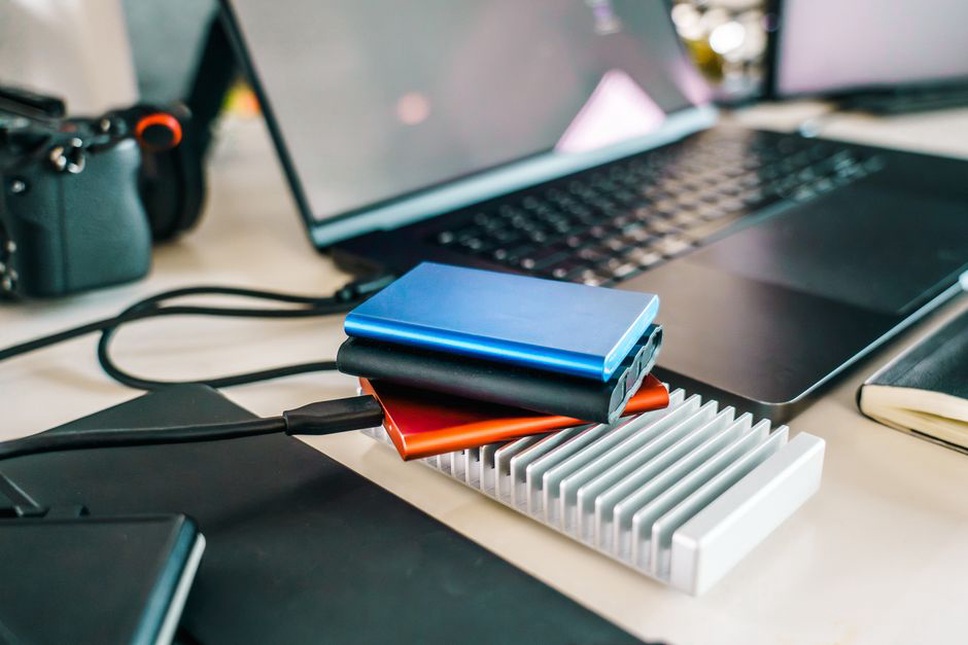
Set up an Inbox for unsorted imports. Give each batch its own folder with a name that tells you where it came from, such as Old laptop or Camera card 2025-07. You’ll be able to trace files back to their source without one camera’s IMG_0001.JPG colliding with another’s.
- Start with recent photos from one device or a single event. Copy the batch rather than moving it.
- Open several images and play a video from the new location. Check that all the file types you expected are there, not just JPEGs.
- Back up the imported batch before deleting anything from the source. If your phone library syncs, check whether deleting a photo also removes it from the cloud and your other devices.
The old devices can wait. Get new imports under control first so the backlog stops growing while you work through earlier years a batch at a time.
Use dates for storage and albums for browsing
If you keep your photos in folders, start with a folder for each year and split it into months or named events. A path like Photos/2025/2025-07-14 Lake trip sorts by date and tells you what’s inside. For everyday pictures that don’t belong to an event, Photos/2025/2025-07 Everyday is enough. Add another level only if you’ll use it regularly.
Use albums or tags to group photos taken on different dates, such as Garden progress or Family favorites. Most photo managers let you put a photo in several albums without making extra copies. Album membership and some tags may not carry over when you export, though. Don’t make them the only way to identify an important set of photos.
Check the capture date, not just the file date
A file’s creation or modification date might tell you when it was copied, downloaded, or edited rather than when the photo was taken. For camera photos, check the capture date in the file’s metadata or the app’s information panel. Scans, screenshots, and images saved from chats may have missing or misleading dates. If you can’t verify the date, use a label like 1990s Family scans rather than guessing a specific day.
You don’t need to rename every file. If clearer names would help with a particular batch, stick to one pattern, such as 2025-07-14_lake-trip_001.jpg, and preview the changes before applying them. If your camera or editor uses companion files for edits or motion clips, use its own tools so the related files stay together when you rename or move them.
Separate duplicates from alternate versions
Files with the same name can contain different photos, and identical files can have different names. A duplicate finder that compares file contents can spot byte-for-byte matches. Tools that compare how photos look can also flag resized copies or shots from the same burst, but review those results yourself. A crop, an edited export, and the camera original may look similar and still be worth keeping.
Review exact matches first and decide where the copy you keep should live. If a photo app manages your library, use its delete or merge controls instead of removing files from its storage folders. Check what happens to edits, favorites, and album membership. Don’t empty the trash or Recently Deleted folder until you’ve checked the results.
Protect the library and share copies deliberately
Sync makes your library available across devices, but it can carry an accidental deletion across them too. A backup gives you a separate copy to recover. The 3-2-1 rule is a practical starting point: keep three copies in total, on two types of storage, with one copy off-site. You could keep the working library on your computer, back it up to an external drive, and use an off-site backup service with version history. If the drive doesn’t need to stay connected, unplug it between backups.
If your photo app keeps some originals online to save space, check whether those files are downloaded or need to be exported separately. A local backup may not include them. To test what you can recover, restore a small folder to a temporary location and open the photos and videos. If you keep scans of personal documents or other sensitive images in the library, encrypt portable backups and store the recovery information separately.
When you share a photo, export a copy and leave the archive alone. If the recipient doesn’t need location data, remove it in the export settings and check the exported file’s details afterward. Before sharing an album, find out if anyone with the link can open it or if access is limited to the people you invite.
Give new imports a regular slot
Pick a time you can stick to, such as the first weekend of the month or the day after you get back from a trip. Deal with the newest batch before digging into old ones. For example, copy July’s phone photos to the Inbox, move the lake-trip pictures into their dated folder, and mark a few favorites. Once the backup is done, restore one July video to a temporary folder and play it before clearing space on your phone.