A leaked password may be enough for someone to try signing in to your email, code repository, or cloud account. If the account requires a second factor, though, the password alone won't get them in. Two-factor authentication (2FA) puts another check between a stolen or reused password and an account takeover.
What counts as a second factor?
Authentication factors fall into three common groups: something you know, such as a password; something you have, such as a security key or a phone with an authenticator app; and something you are, such as a fingerprint. 2FA uses checks from different groups. A password plus a security question generally doesn't count, because both rely on something you know. Multifactor authentication (MFA) is the broader term for using two or more factors.
After you enter a password, a service might ask for an authenticator code, send an approval request to a registered device, or prompt you to use a hardware security key. A phone unlock, fingerprint, or PIN may protect access to that app or key; the exact flow depends on the service. In each case, someone with only your password faces another barrier.
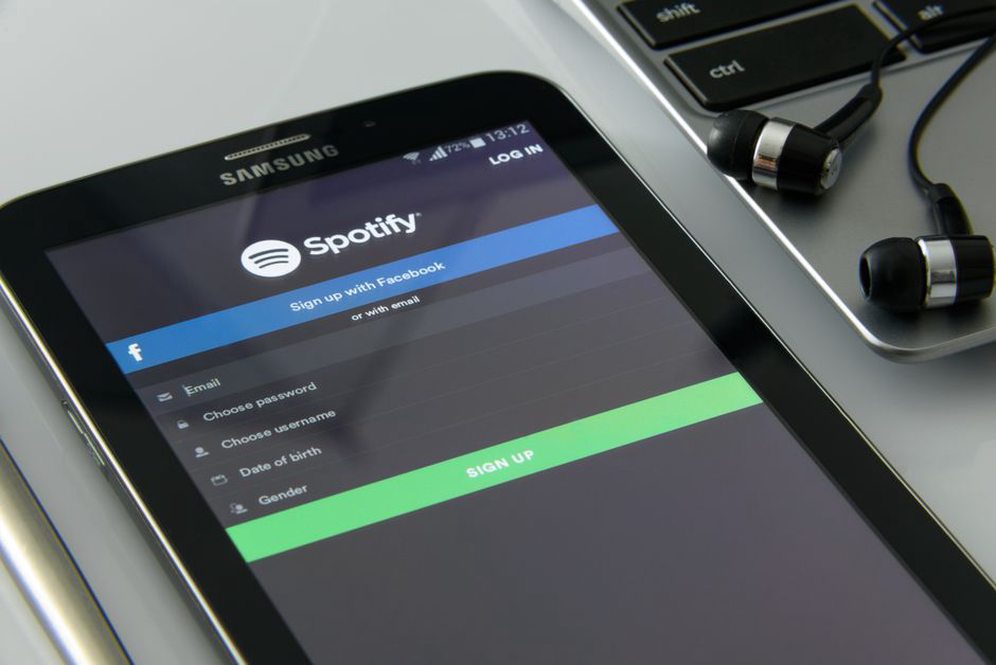
Why passwords need a backup barrier
A service breach, a convincing fake sign-in page, or a password entered in the wrong place can expose a credential even when you're careful. Reuse makes that exposure more dangerous: a password leaked by one service may be tried on unrelated accounts. A password manager helps you give each account a unique password. 2FA limits the damage if one is compromised. You need both.
For beginner developers, the risk goes beyond personal messages. Someone with access to your email may be able to reset other accounts. Access to a code-hosting account could expose private projects or let someone make changes under your identity. Deployment, DNS, and cloud accounts need particular attention because one sign-in can affect an entire application. Start by enabling 2FA on your primary email, then your password manager, code-hosting account, and services with administrative access.
Choosing a second-factor method
Authenticator app codes
Many services support time-based one-time passwords (TOTP). During setup, the service shares a secret with your authenticator app, usually through a QR code. The app uses it to generate short-lived codes without cellular coverage. Keep that QR code or secret private: anyone who copies it may be able to generate the same codes. Put a screen lock on the device that holds the app, too.
TOTP is convenient and widely available, but it isn't phishing-resistant. A fake website can collect your password and current code, then try to use them before the code expires. Check that you're using the service's genuine app or address, especially when you arrived through a link in a message.
Security keys and passkeys
Hardware security keys that use FIDO2/WebAuthn can check that they're communicating with the intended website before completing sign-in. That makes them better at resisting fake sign-in pages than codes you type in. Depending on the service's settings, a security key may serve as a second factor after a password. A passkey may instead replace the password and use a device unlock during sign-in, so calling every passkey flow password-plus-2FA would be misleading.
If the account supports security keys, register two so you have a spare if one is lost. Store the spare separately, somewhere you can reach during recovery. Check the account's fallback methods as well; an attacker may target a weaker fallback instead of the key.
Push prompts and text messages
Push approval is quick, but deny any sign-in you didn't start. Repeated unexpected prompts may mean someone already has your password. If the service offers number matching, use it: matching a number on the sign-in screen gives you more context than a simple approve-or-deny notification.
SMS codes still add a barrier when stronger options aren't available. They depend on your mobile number and carrier, however, and phone-number takeover, message interception, or poor reception can make them less dependable than an authenticator app or security key. If SMS is an important account's only 2FA option, use it rather than leaving the account without 2FA. Protect your carrier account and watch for stronger options.

Set up 2FA without locking yourself out
Don't stop once the first code works. Plan how you'll regain access if you change phones or lose a security key.
- Start in the account's security settings. Open the service through your usual bookmark or app, not a link in an unsolicited message. Review its options and choose the strongest method you can use reliably.
- Register and verify your main method. Complete the service's test prompt or code entry. If it allows another security key or authenticator method, add that backup now.
- Save recovery codes securely. These are typically one-use codes for getting back in when your usual factor is unavailable. Keep them in a protected place separate from your 2FA device, not in a public repository, shared document, or unencrypted note.
- Review sessions and recovery details. Remove devices you no longer use or recognize. Check that any configured recovery email and phone number belong to you. A device that's already signed in may not be asked for 2FA again.
- Test a normal sign-in. Sign out where it's safe to do so, then confirm you can sign back in with your chosen factor. Don't test recovery by deleting your authenticator app or removing your only registered key.
What 2FA does not solve
2FA protects the sign-in decision, not everything that happens afterward. Malware on an unlocked device, a stolen active session, or an unexpected request that you approve can still cause harm. Someone with access to your recovery email may also be able to pursue the account's recovery process. Keep devices updated, use screen locks, and protect recovery accounts as carefully as the accounts they can restore.
Development credentials need separate attention. API tokens, SSH keys, and application secrets may grant access without an interactive 2FA prompt. Limit their permissions, store them securely, and revoke them if they're exposed. Enabling 2FA on a code-hosting account won't cancel a leaked token that has repository access.
If a sign-in prompt appears when you aren't signing in, deny it. Open the genuine app or website yourself and check recent activity. If you find an unfamiliar sign-in, change the password from a trusted device, revoke suspicious sessions, and review recovery settings and connected applications. Keep your recovery codes at hand while you do this; the service may ask you to sign in again.